
This post walks through a simple workflow for recording bird calls using WavePad on iOS or Android. It is written from the perspective of field use.
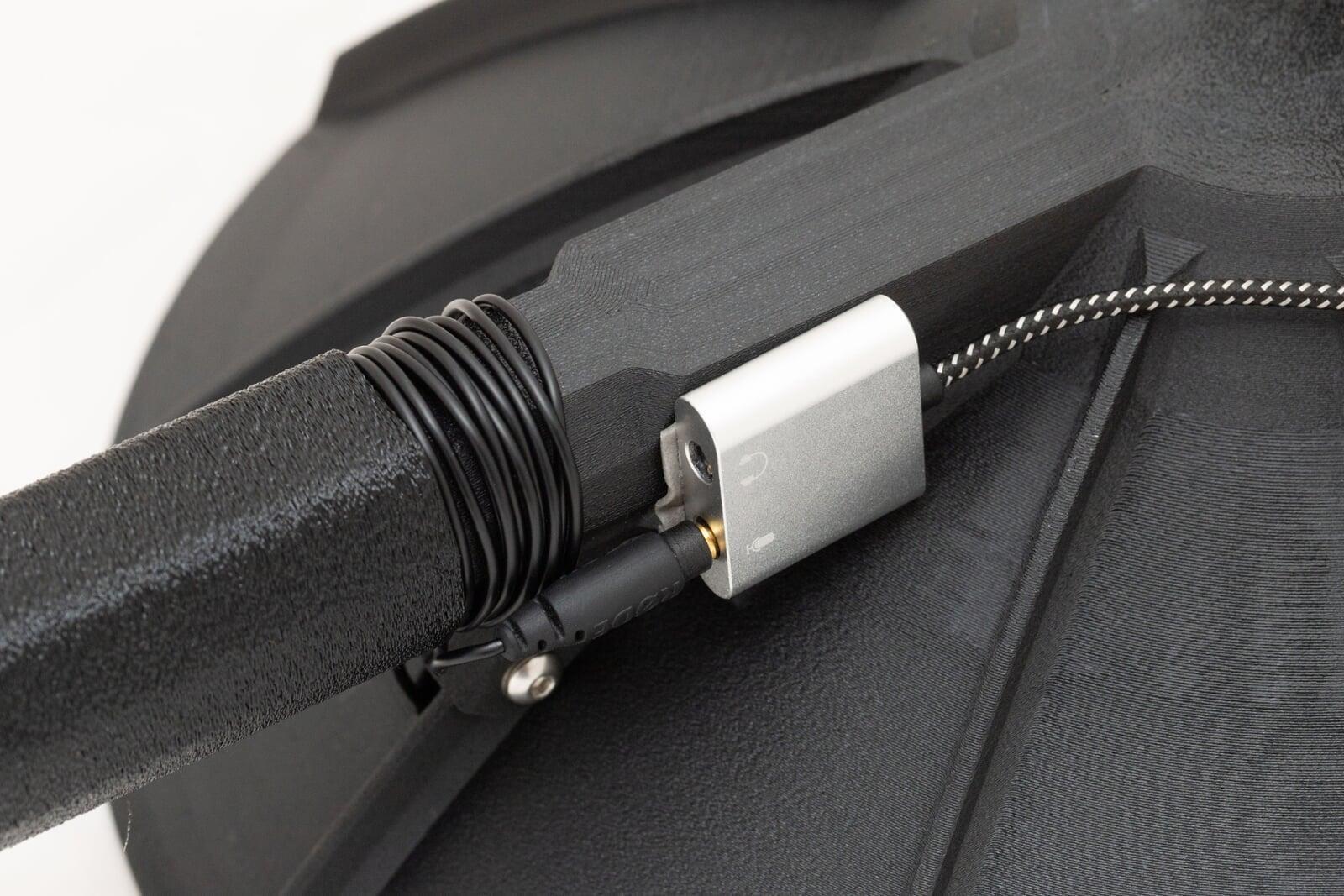
The steps in this article will work for the built in microphone, a small external shotgun microphone, or for the best quality a TalonFab parabolic microphone connected to your phone via a USB C interface.
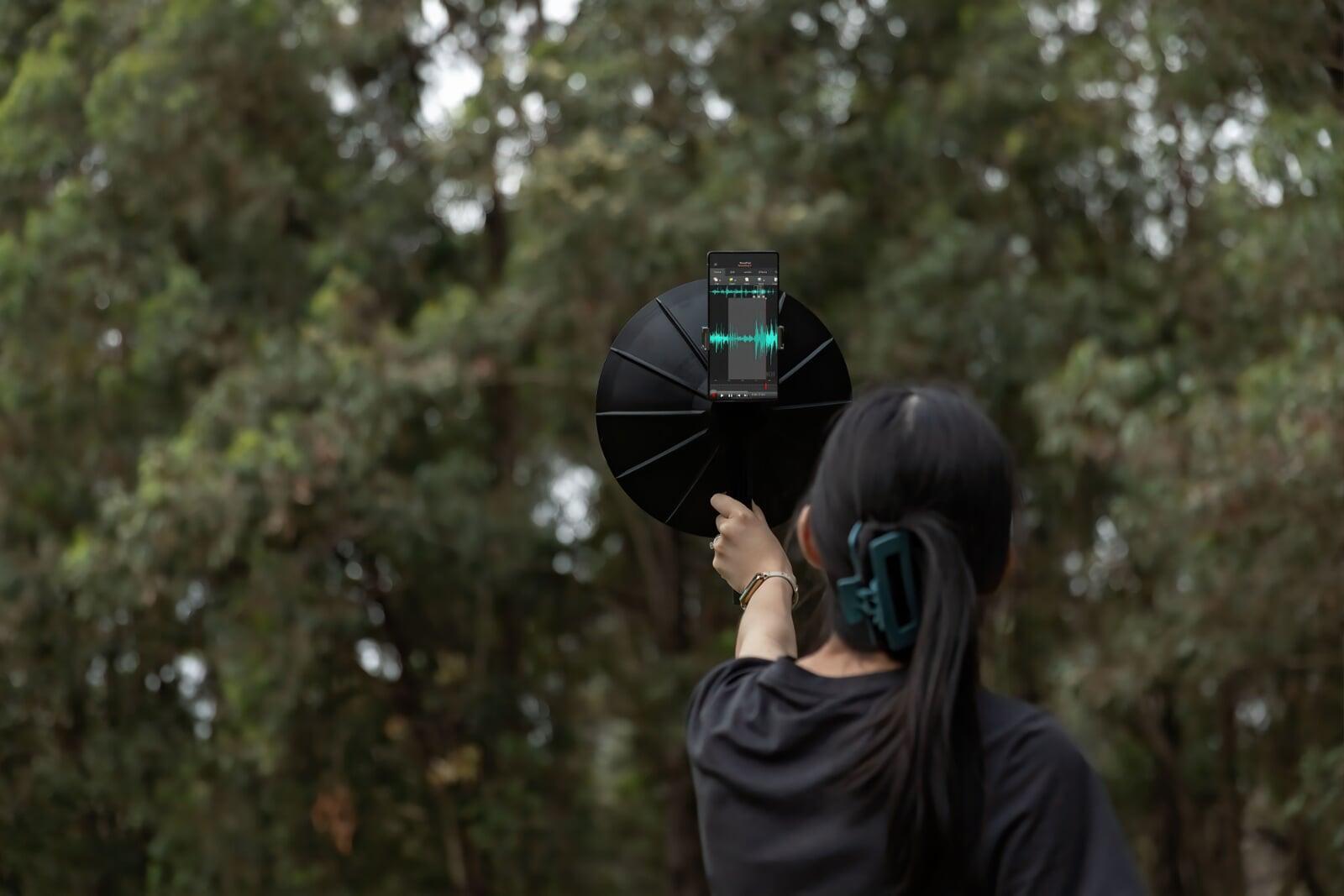
Why WavePad
WavePad allows you to record uncompressed audio, apply basic EQ and filtering, and export files in sensible formats without forcing you into a subscription. They also exposes enough control to be useful without being so complex that it is frustrating to use in the field. There are valid alternative options on both platforms.
A Simple Field-to-File Workflow
A Simple Field-to-File Workflow
1. Setup
1. Setup
This is perhaps obvious. But make sure your microphone is connected to your phone correctly. Do a quick test recording and make sure you get a good signal and that you're using the external microphone if you have one connected. Set the gain to a good volume and avoid clipping - a bit quiet is better than too loud. Check everything is properly seated and not free to move - you want to avoid handling noise during the recording. Check your sample rate and bit depth settings. A sample rate 44.1kHz or 48kHz is fine unless you are interested in recording ultrasonic calls for bioacoustics. Use 24 or 32 bit audio over 16 bit - the extra dynamic range helps to capture very loud and very soft sounds together and adjust the volume later.
2. Locate your subject and position yourself
The first step is to position yourself to maximise the signal to noise ratio of your recording. Getting closer to the subject will always help - halving the distance will improve the signal to noise ratio by about 6 decibels. If you're using a directional microphone (like a shotgun microphone or a parabolic microphone), then you can also think about the direction to maximise the signal to noise ratio of your recording - try to place the subject at your front and competing noise at the same frequencies at your back.
3. Press record and capture the call
Once you're ready, point your microphone at your subject and press record. Hold everything very still during this time - any handling noise will come through in the recording. Watch the volume monitor for any clipping and adjust the gain down if it occurs.
4. Apply equalisation
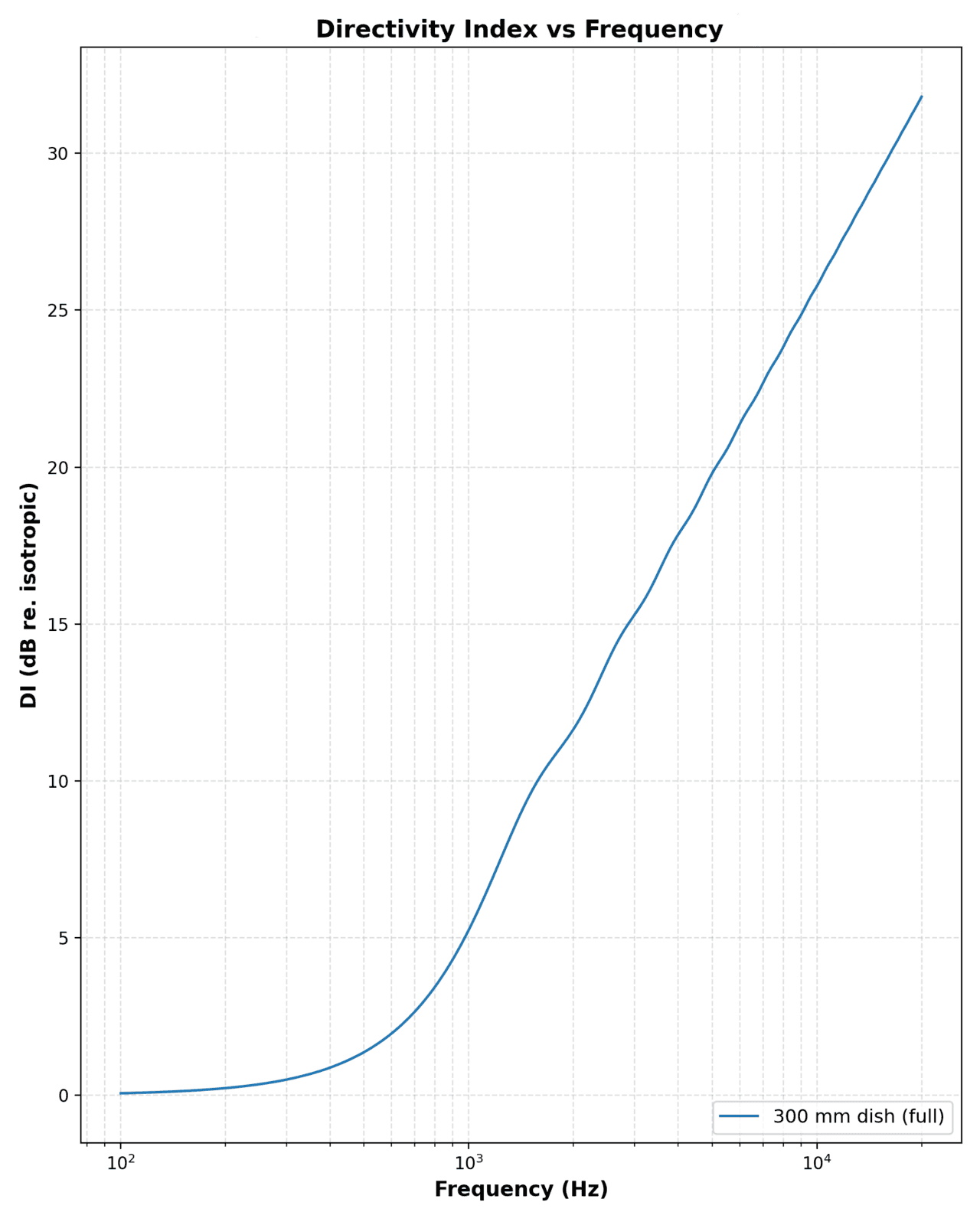
Skip this step if you're using a different type of microphone or the one built into your phone. Parabolic microphones are not tonally neutral. A dish boosts higher frequencies more than lower ones, and the amount of boost increases roughly with frequency. They also get more and more directional at high frequencies. A common rule of thumb is a correction of around 6 dB per octave, applied as a downward slope toward the higher frequencies
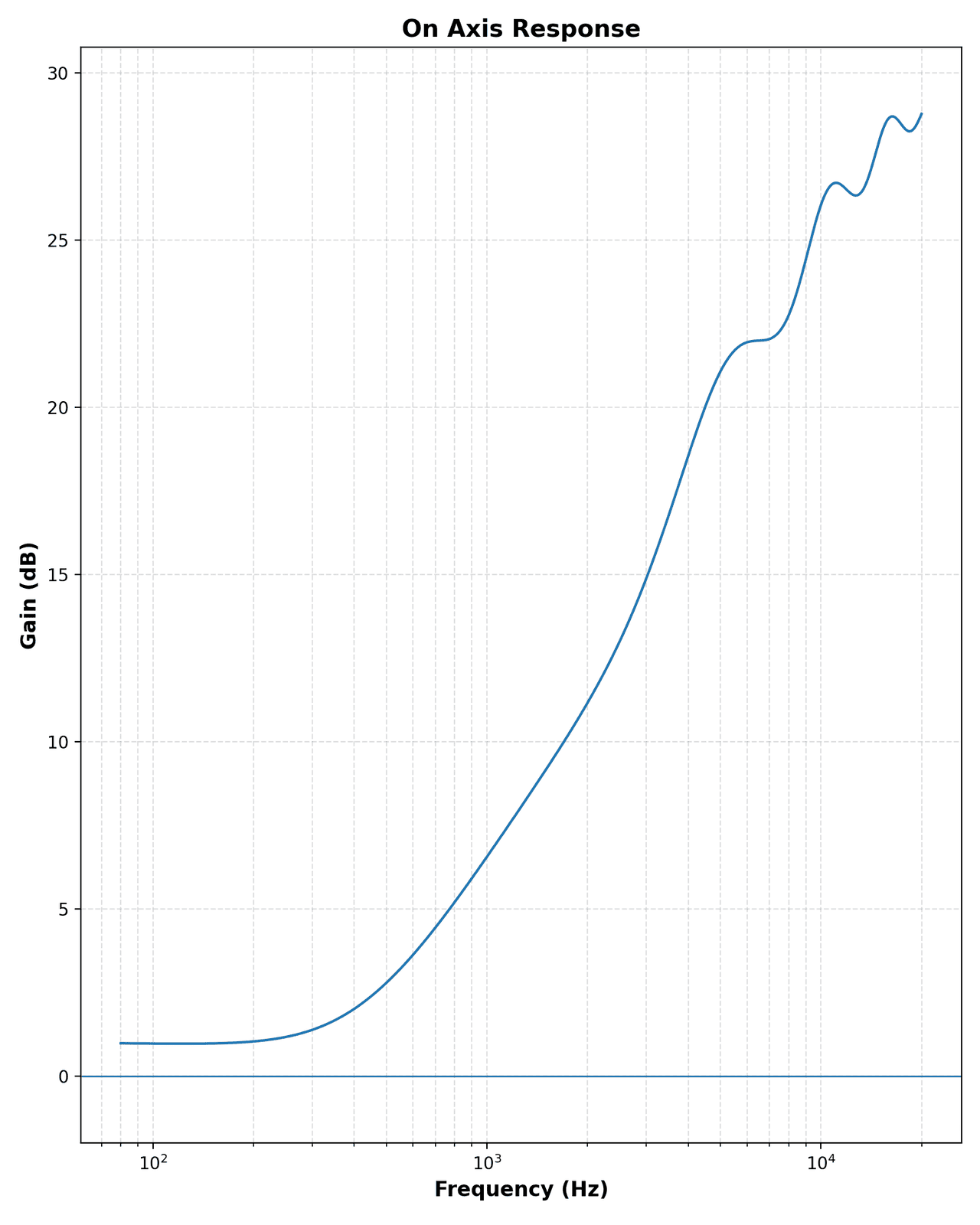
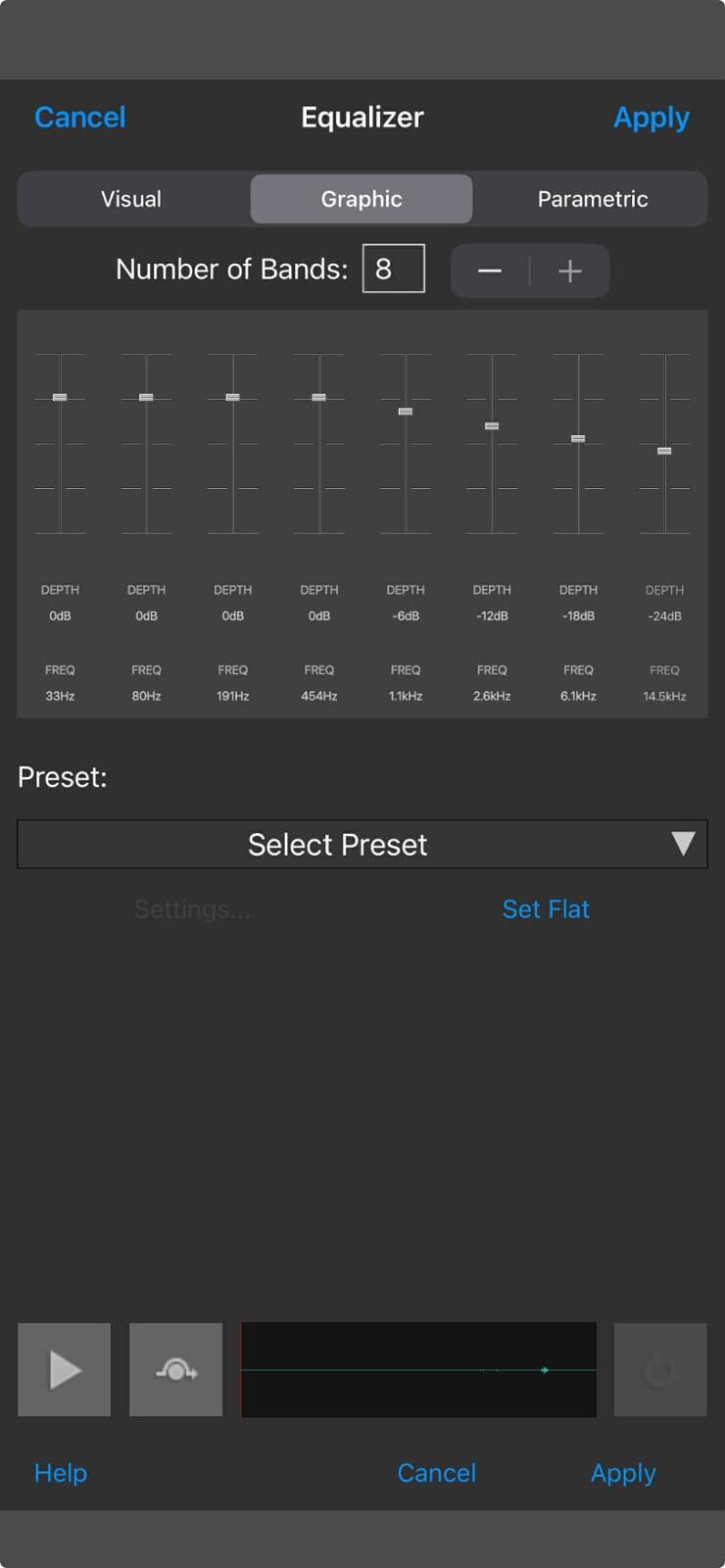
Unless the bird you are calling has a deep call (like a buttonquail for instance), then reducing low frequencies with EQ can be a good idea - it's an easy way to remove sounds like traffic, wind and handling noise. Start with 250hz, but if the subject has a high pitched call it may be possible to go significantly higher.
5. Apply normalisation
5. Apply normalisation
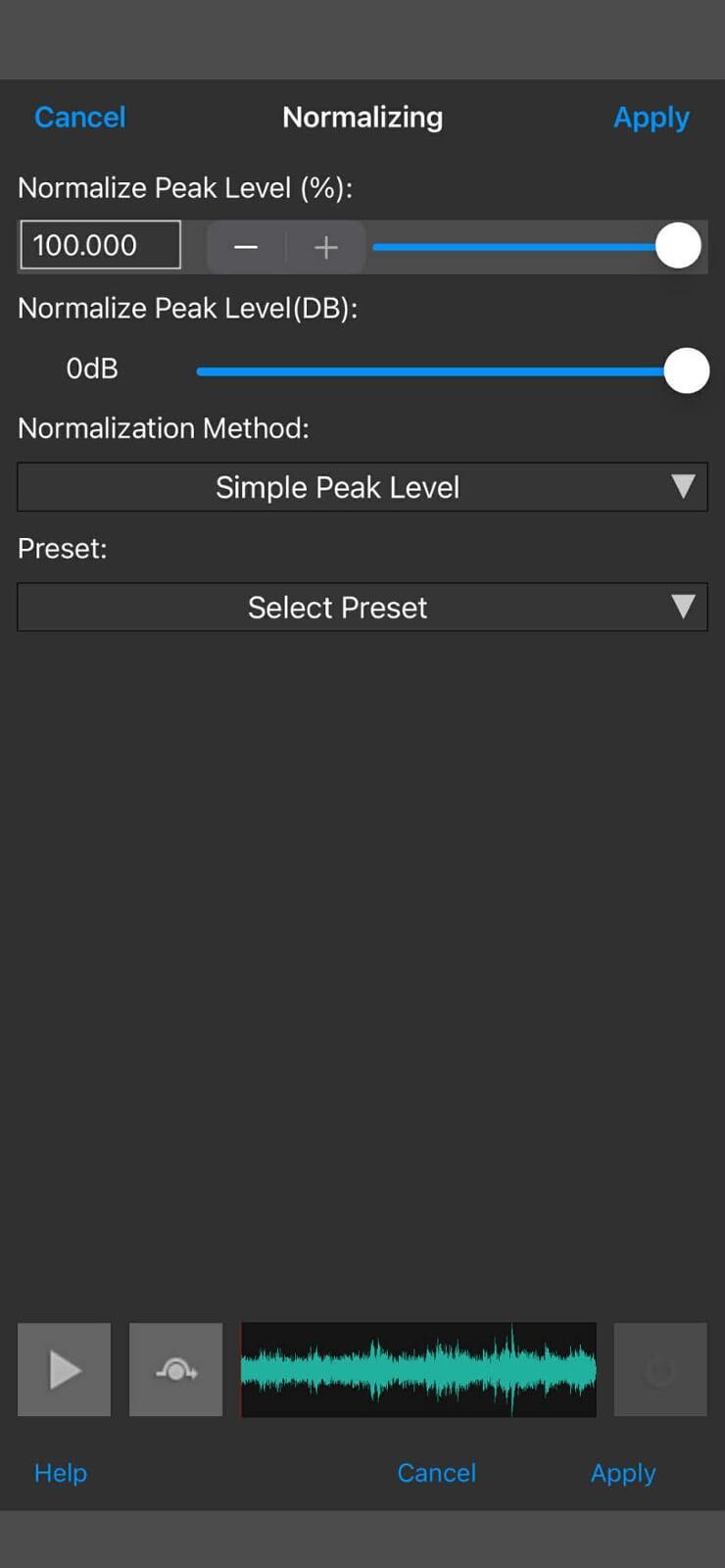
Use the normalisation tool to automatically adjust the volume of the recording. To avoid clipping it is best to do this after EQ has been applied. To do this in WavePad click Normalize... in the Levels menu.
6. Trim the recording
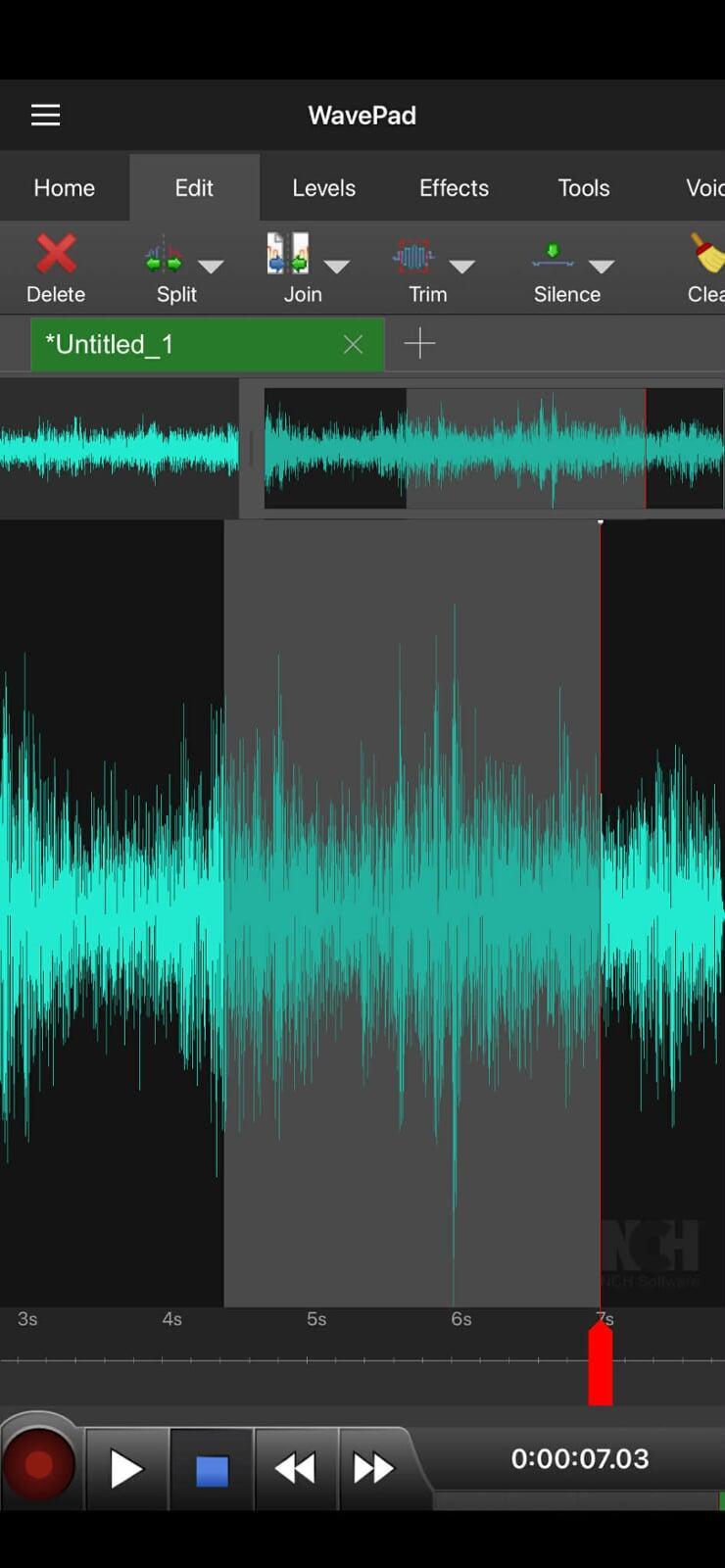
Now it's time to trim the recording. Usually there will be some handling noise at the start of the end, and there is also most likely time before and after the call that you may wish to not include in the final copy. To trim the recording, go to the Edit tab, drag your finger to select the part of the recording you want to keep, and then listen to the selection and adjust until it's right. Then click "Trim" to cut off the bits at the start and the end that you didn't want.
7. Export the recording
Once filtering is done, the final step is export. Things to think about:
Are you exporting WAV or another format?
Are you keeping the original raw recording as well?
Are you naming files in a way that makes sense later?
I usually treat the exported file as a processed derivative and keep the original untouched. Keeping the place, time and any species present is a good idea.
Final Thoughts
WavePad is a practical tool for recording and lightly processing bird calls in the field. Used conservatively, it allows you to go from microphone to a good quality file without needing a laptop or complex setup. The use of equalisation is key to reduce the amount of noise in recordings and to get a natural sound.
This article has not covered Android or editing files later on a computer - those will be covered in later blog posts.