
This post walks through recording, cleaning up and sharing bird calls using the TalonFab Recorder and Editor - a free tool with an efficient workflow for recording, editing and playing back calls. The app is free, has no ads, no account requirements, no data collection, and it works with any microphone: the one built into your phone, a small shotgun mic, a USB microphone or interface, or a TalonFab parabolic microphone for the best possible quality.
Currently, the beta version of TalonFab Recorder and Editor is available in the browser at editor.talonfab.com.au. We also expect to release native versions for Android, iOS, Windows and macOS X after further field testing!
The app supports recording with your phone using the built-in microphone, a small external shotgun microphone, or for the best quality a TalonFab parabolic microphone . If you'd prefer to use an external recorder, then the app can be used to edit your calls after recording.
What makes a good bird recording app?
When I reviewed other tools in an earlier post, the checklist was: uncompressed recording, enough editing control to be useful in the field, sensible export formats, and no subscription ambush. This app was built to that checklist, then extended with the things bird recordists actually need:
- Uncompressed WAV recording and editing at up to 32-bit float and up to 384 kHz where your hardware supports it
- Real visualisations — waveform, spectrogram and frequency spectrum with a synced playhead
- Non-destructive editing — your original audio is not modified as you adjust filters.
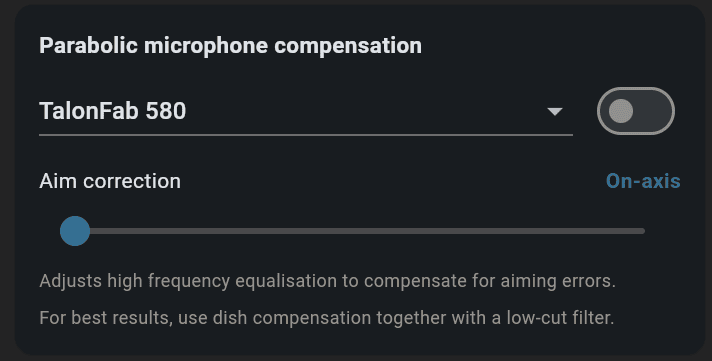
- One-toggle parabolic compensation for TalonFab dishes lets you achieve flat frequency response
- On-device AI noise reduction (beta) - audio never leaves your phone
- Export to WAV, FLAC or MP3, or create a spectrogram "reel" video for socials
How to record bird calls
How to record bird calls
In this section we cover a simple workflow to set up a microphone, record a call and then to apply filters to improve the quality of the call. In this section we assume that you will use TalonFab Recorder and Editor for both recording and editing. But if you want to use a dedicated audio recorder, you can just skip to the editing steps.
1. Setup
1. Setup
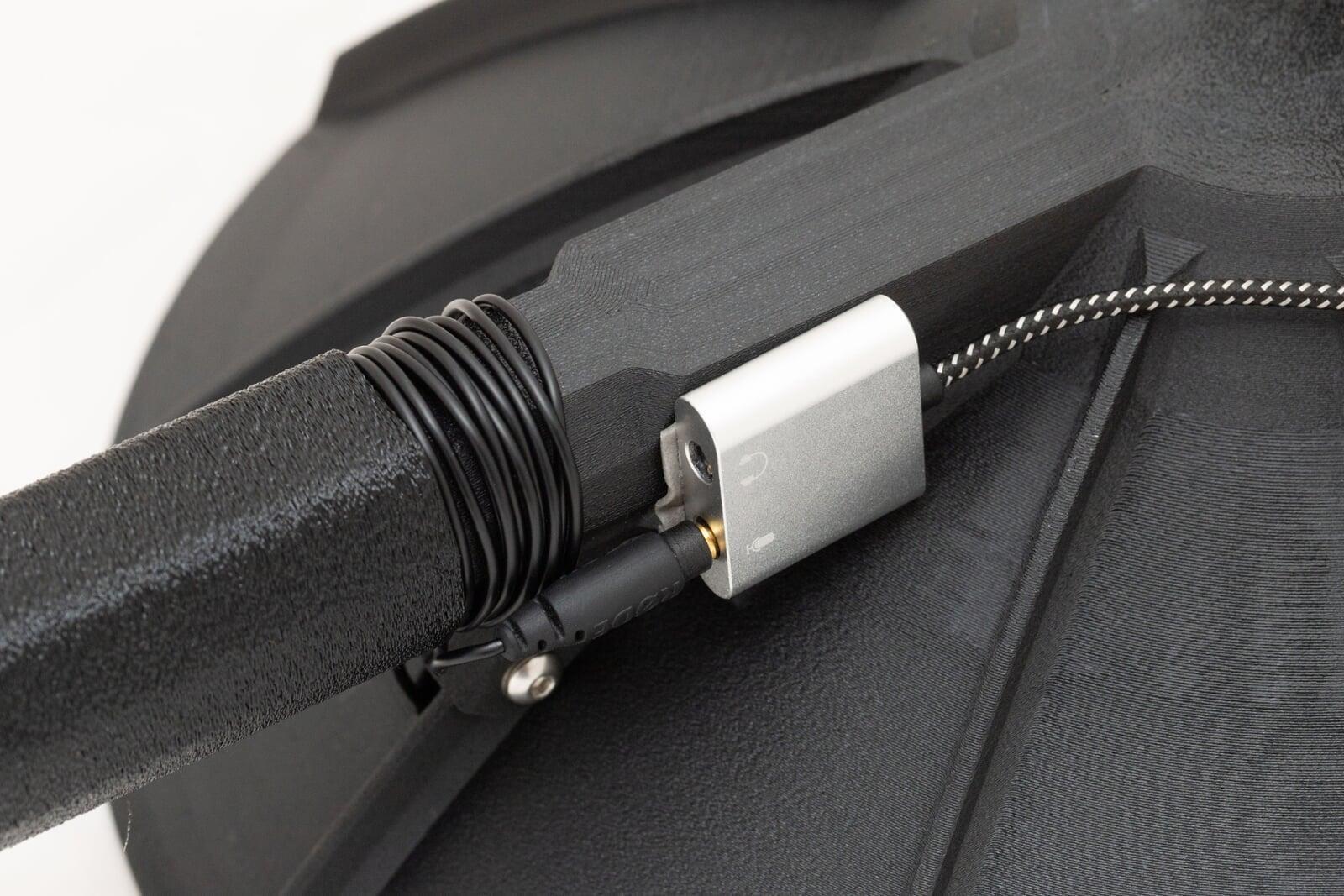
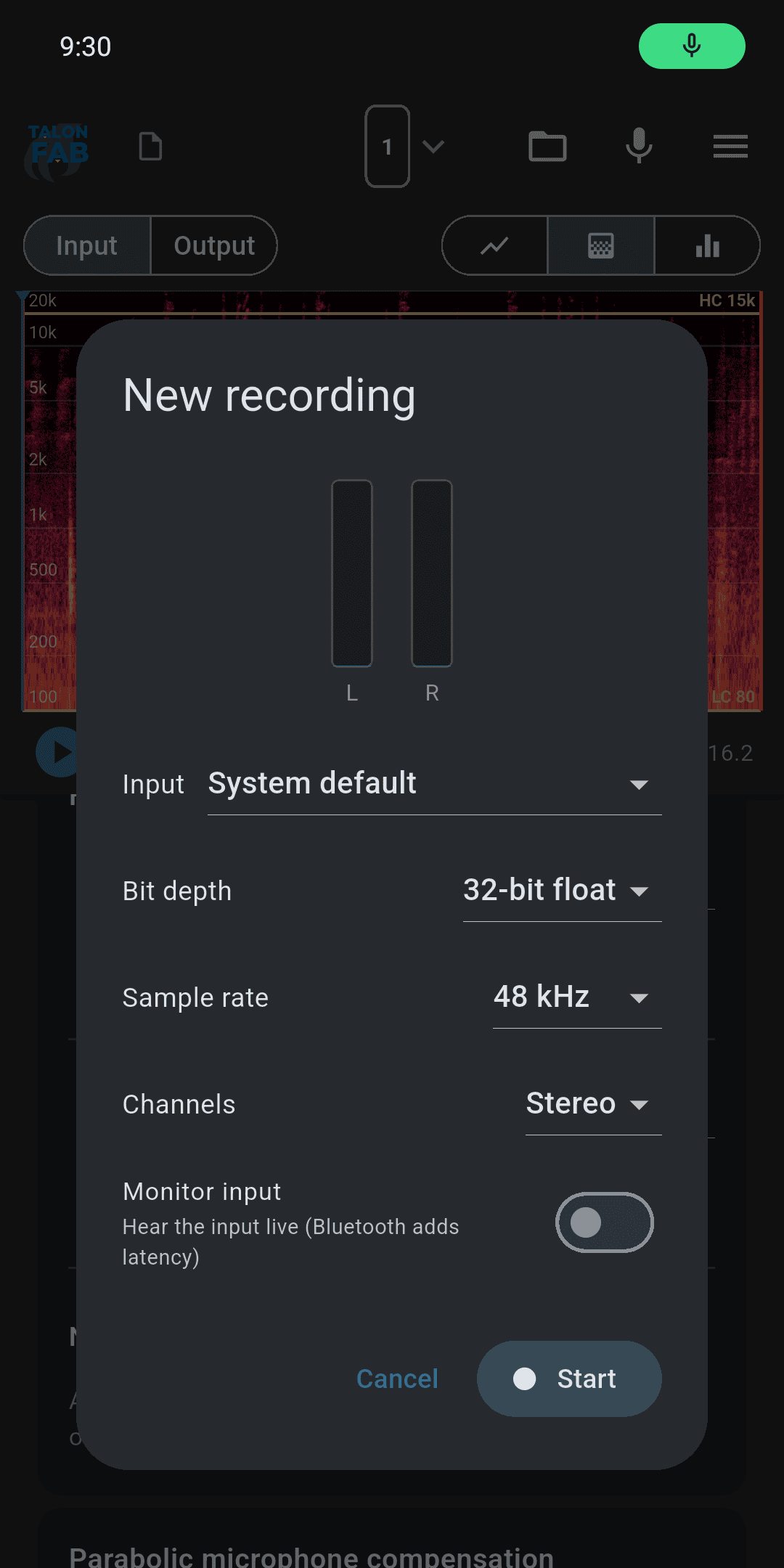
Make sure your microphone is connected to your phone correctly. Open the app and tap Record. Choose your input device - the phone's own mic, or an external USB microphone or interface if you have one connected. Pick a sample rate and bit depth: 48 kHz is fine unless you want to capture ultrasonic calls, choose the highest bit depth available, 32-bit float or 24 bit both beat 16-bit. The extra dynamic range captures very loud and very soft sounds together, so you can fix levels later.
If you have headphones, you can enable monitoring and select the right monitoring interface. Check that you have selected the right microphone as input and the right output for monitoring. If you don't want to monitor, just do a quick 10 second recording to make sure everything is as expected.
2. Locate your subject and position yourself
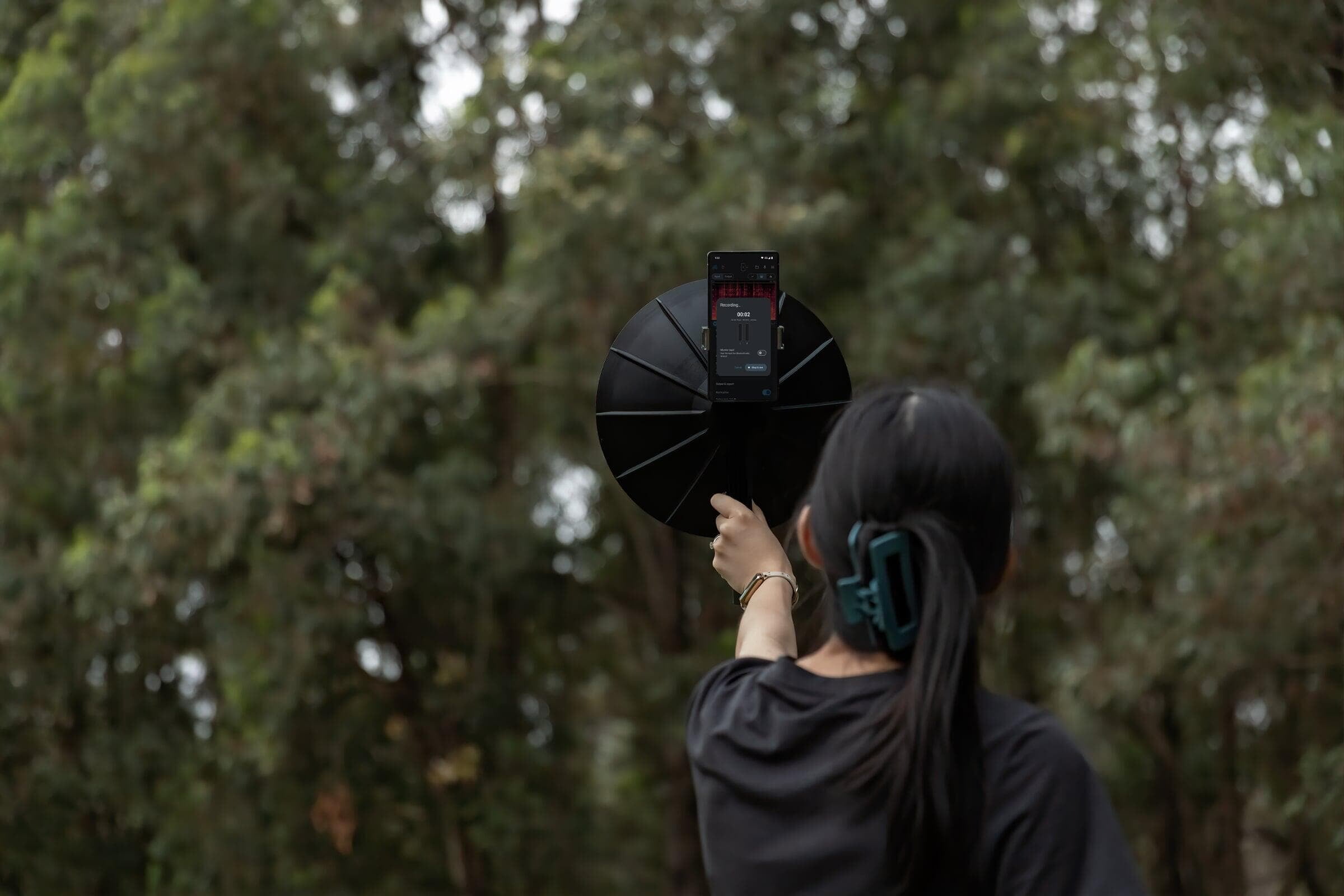
The first step is to position yourself to maximise the signal-to-noise ratio of your recording. Getting closer to the subject will always help - halving the distance will improve the signal by about 6 decibels. If you're using a directional microphone (like a shotgun microphone or a parabolic microphone), then you can also think about the direction to maximise the signal to noise ratio of your recording - try to place the subject at your front and competing higher frequency noise at the same frequencies at your back. Neither type of microphone is directional for low frequency noise like traffic.

3. Press record and capture the call
Once you're ready, point your microphone at your subject and press record. Hold everything still during this time and take care not to bump the microphone or anything it is attached to - any handling noise will come through in the recording.
If you're using an app version, recording continues with the screen off and is more battery efficient. If you're recording at night you can also enable night mode for a red only display to save your night vision.
4. Crop and filter the call
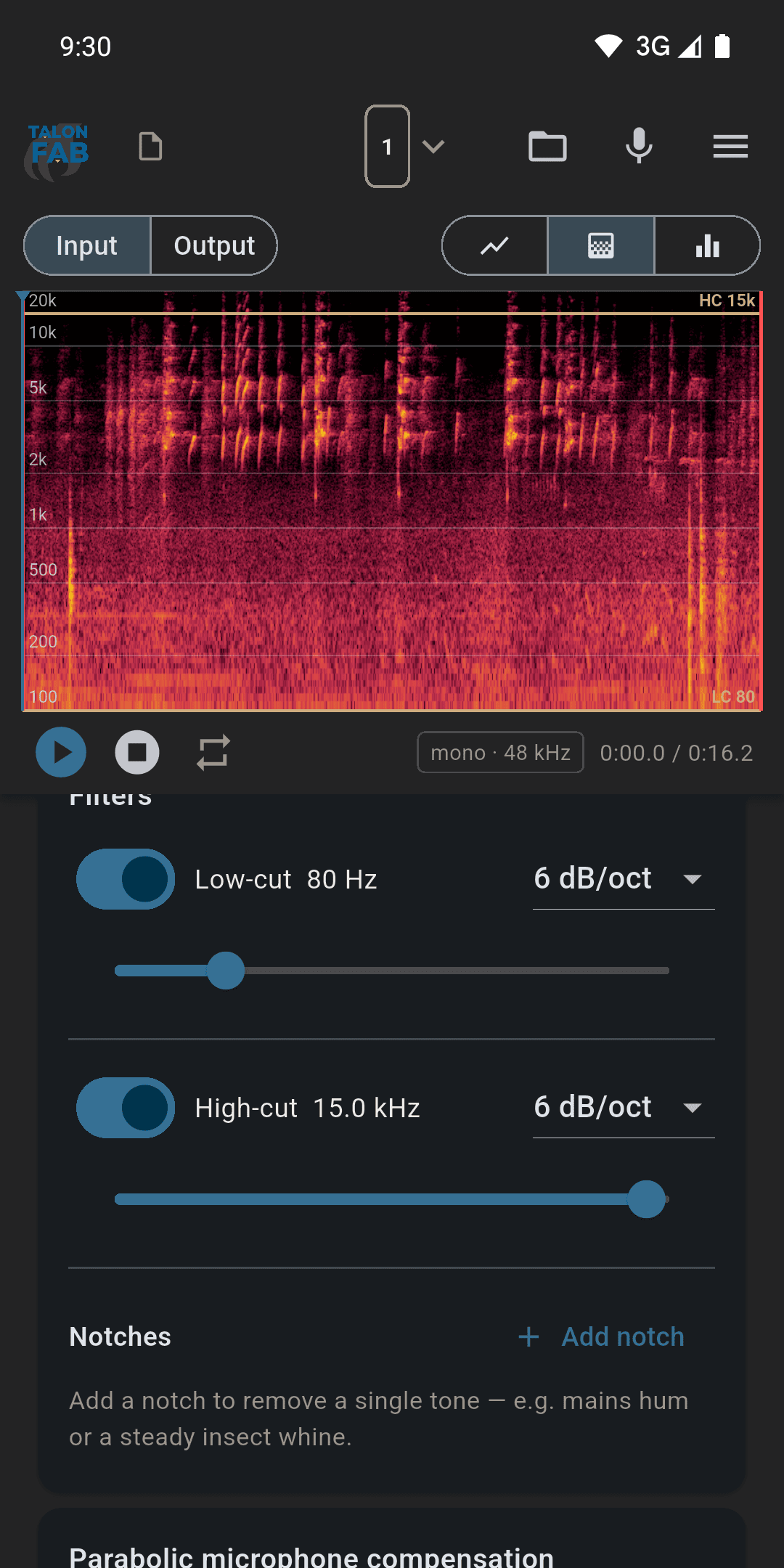
When you stop, the take opens in the editor. Use the spectrogram view to find the call — birds that are hard to see on a waveform are obvious on a spectrogram — and set the crop so only the section you want remains. Crop is non-destructive: so you can always change your mind later. If you've cropped a lot, it may be helpful to click on "Output" so that the spectrogram and timeline views only show the cropped part of the call.
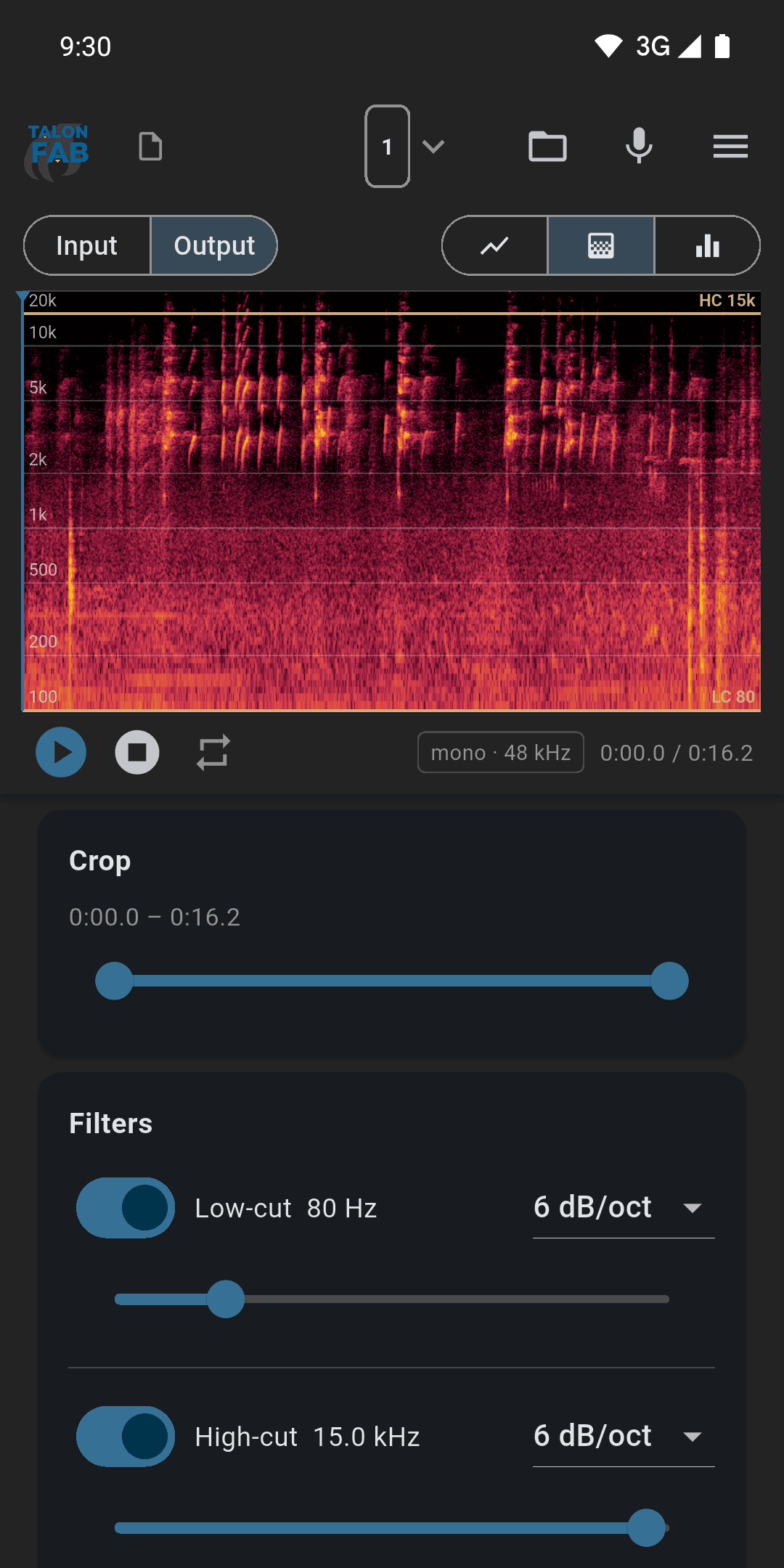
The low cut is your main noise-killer: it removes traffic rumble, wind and handling noise. Start around 250 Hz; if your subject's call is high-pitched, you can often go considerably higher - look at the spectrogram or waveform views and listen to figure out how much.
There's also a high cut for hiss above the call, and notch filters for single steady tones like a persistent insect. Add a notch, drag it onto the offending frequency, and adjust its width (Q) until the tone disappears without touching the bird call.
5. Parabolic compensation (dish users)

6. AI noise reduction (beta)
For recordings where there is broadband noise competing with call spectrum, enable AI noise reduction. The model runs entirely on your phone; nothing is uploaded. Processing takes a moment (it's slower in the web version). The effect in the beta version is usually subtle and whether it can help will depend on the type of noise.
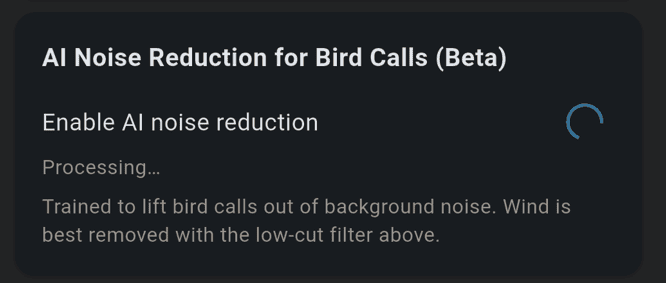
Note: Currently eBird policy prohibits the use of any noise reduction. To remain compliant with that policy avoid use of this feature for uploading bird calls to eBird. Xeno Canto also recommends avoiding the use of noise reduction.
7. Normalise
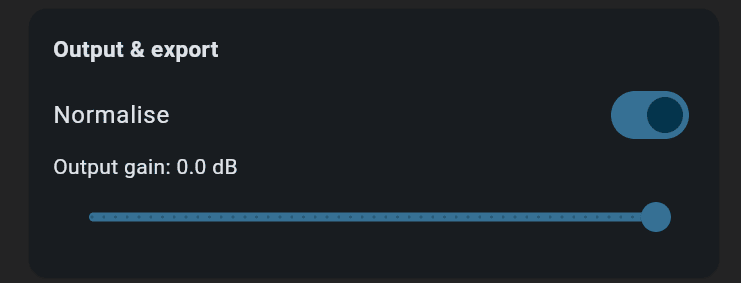
Leave Normalise on and the app automatically brings the processed recording up to a consistent peak level after all other processing. Some speakers distort at 0dB - it may be helpful to reduce the output gain in some circumstances.
8. Save and Export
Once you're done, you have a few ways to get audio out of the app:
- Save project writes a single ordinary audio file with your original untouched audio plus all your edit settings embedded inside it as metadata. It plays anywhere like a normal unedited file, but reopening it in the app restores your whole session, sliders and all. This is the "keep the raw take" advice from my earlier posts, automated.
- Export… renders the processed audio only. Use this for the copy you upload or send.
- Export Reel… exports a video. The edited recording is the audio and a timeline and spectrogram view makes up the visual component.
That's the whole field workflow: record, trim, compensate, filter, normalise, save. With a little practice it's two or three minutes per recording.
Final Thoughts
The most important part of recording bird calls is still what happens in the field: getting close enough, pointing the microphone accurately, avoiding handling noise and capturing a clean signal before the bird moves on. No app can fully rescue a recording that contains more wind, traffic or movement than bird call.
What TalonFab Recorder and Editor does is make everything after that faster and simpler. Recording, locating the call, trimming it, applying useful filters, correcting the response of a parabolic dish and exporting a finished file can all be done with lightning speed.
You also do not need specialist equipment to begin. A phone microphone is enough to practise the workflow, while an external microphone or parabolic dish can provide a substantial improvement when you want cleaner recordings of distant or quiet birds.
The browser beta is available now at editor.talonfab.com.au and is free to use. Native Android, iOS, Windows and macOS versions are planned after further field testing. The goal is straightforward: make it easier for birders to capture, preserve and share good recordings without turning audio editing into a separate hobby.